WADeck Integration FAQ
If WhatsApp integration isn't working, follow these steps in order.
1. Check your phone's network first
On your phone, send a message to any contact in WhatsApp.
If the message shows double check marks in the bottom-right corner, your phone has a working connection and WhatsApp is online.
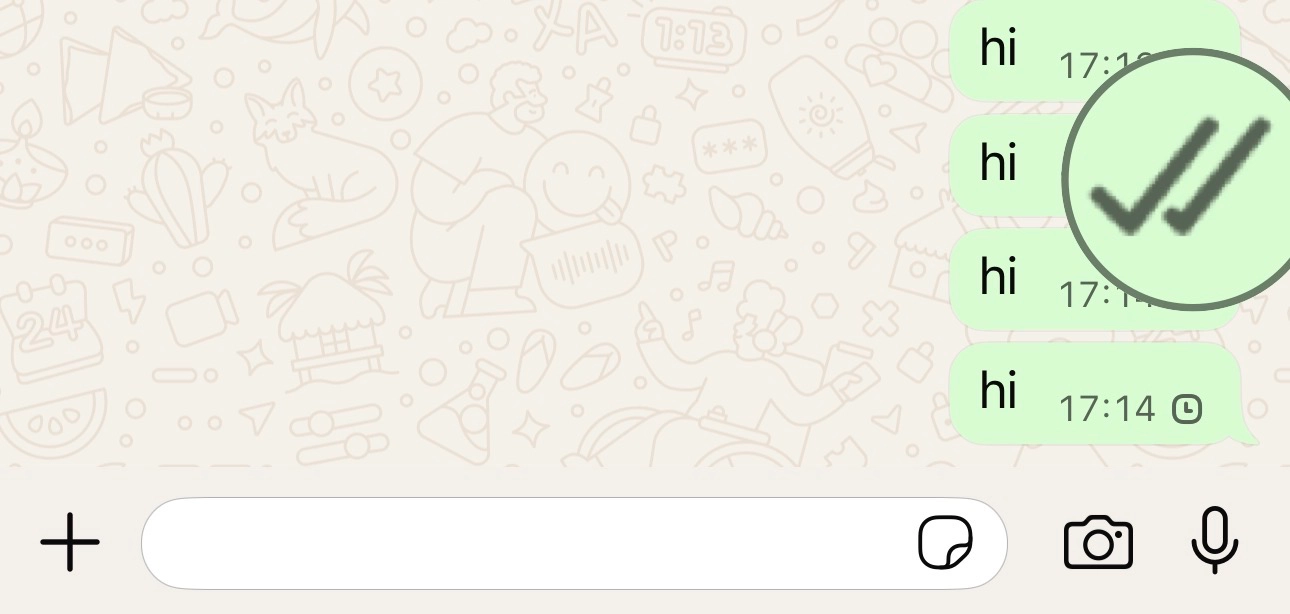
If messages stay on a single check mark, keep spinning, or fail to send, fix your phone's network first, then try WADeck again.
2. Log in to WhatsApp Web with your phone number
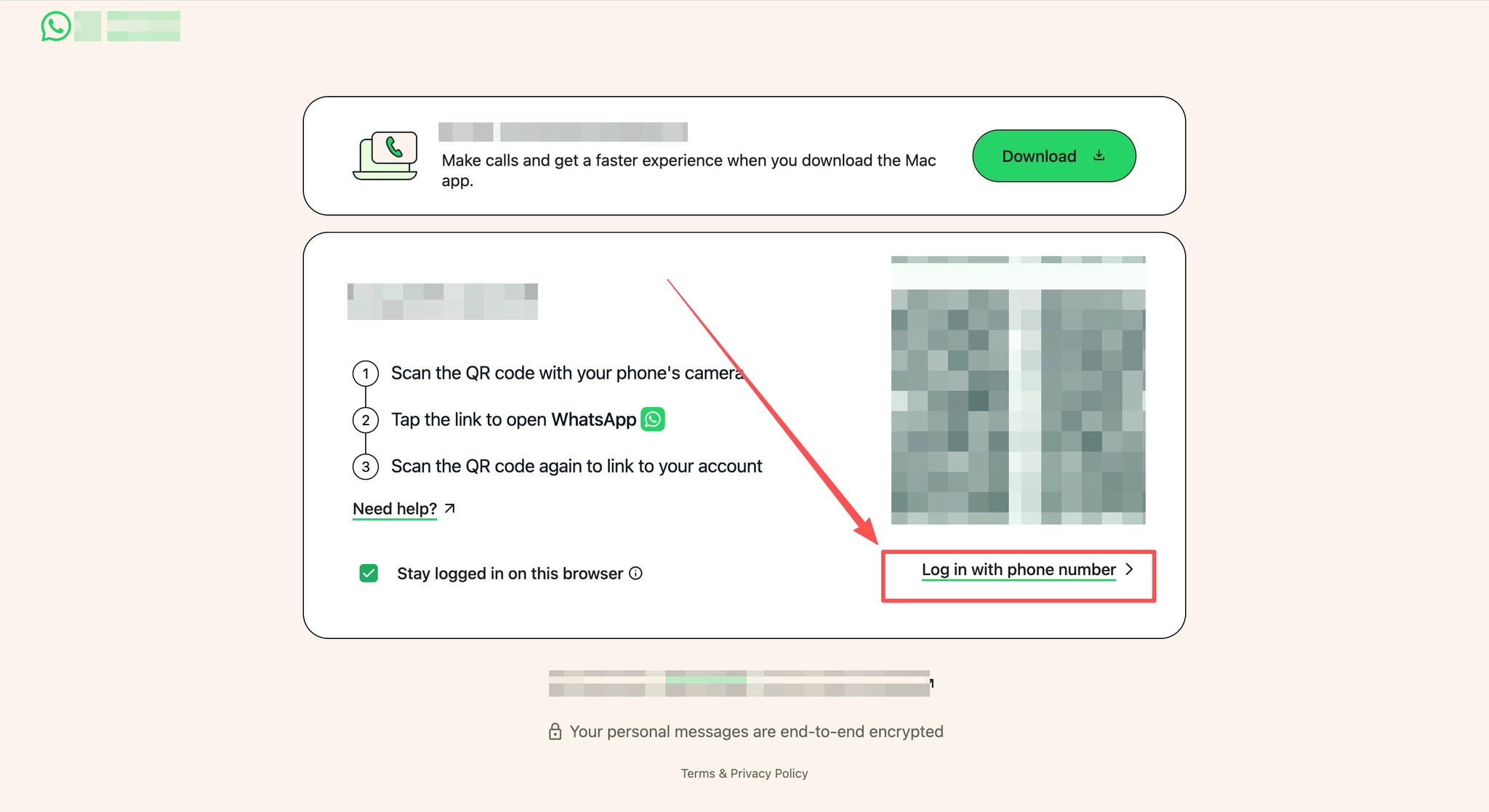
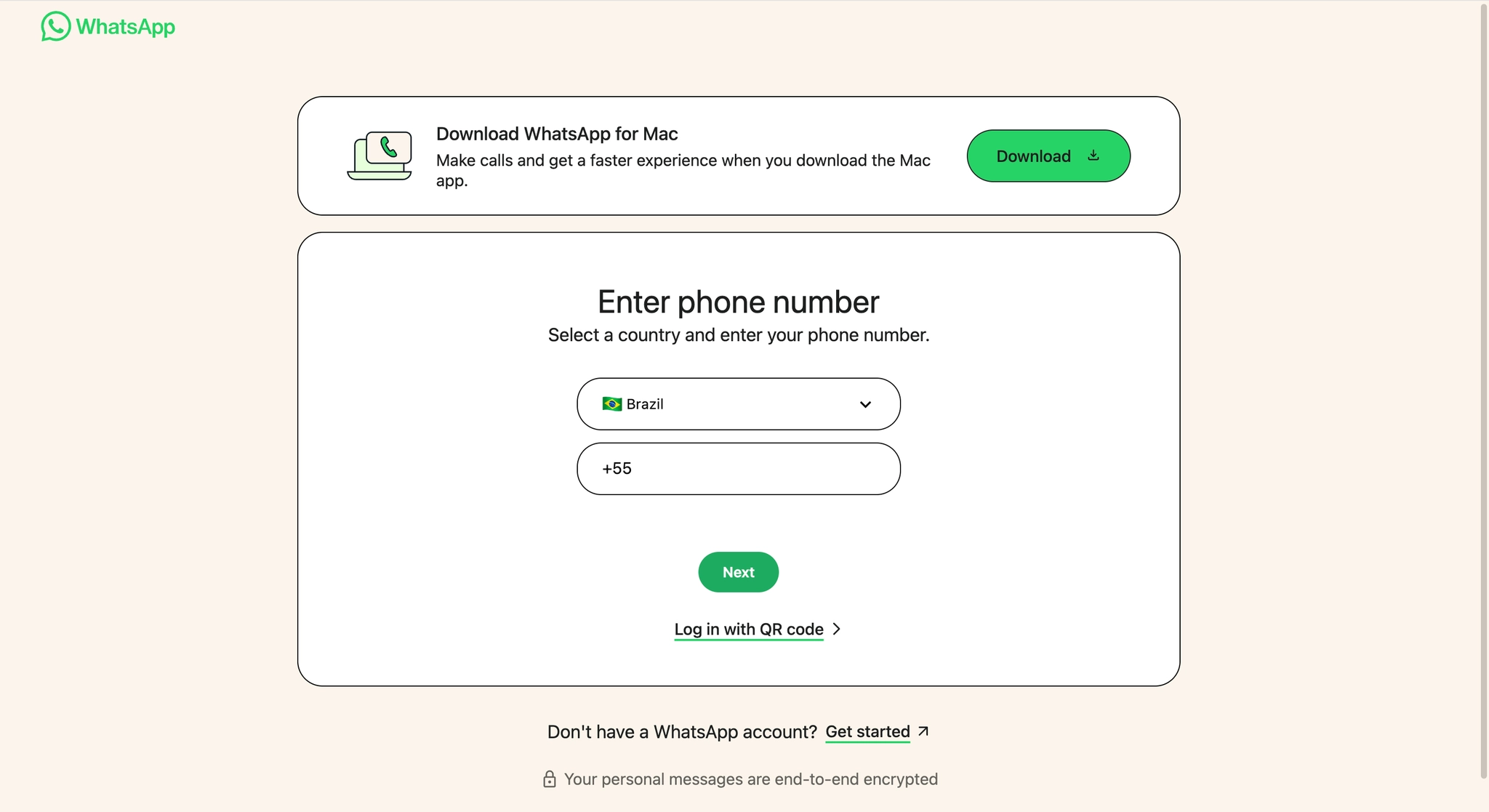
If your phone network is fine but the issue persists, log in again on WhatsApp Web using your phone number:
- Open the WhatsApp Web login page.
- Click Log in with phone number.
- Enter your country code and phone number.
- Complete verification and sign in again.
3. Remember the 14-day inactivity rule
If you don't use WhatsApp on your phone for more than 14 days, all linked web and desktop sessions are logged out automatically.
If web access stops working suddenly, sign in on your phone first, then link your web or desktop device again.