Telegram is a cloud-based instant messaging app that supports secure communication, media sharing, group chats, and more.
With WADeck's Telegram Bot integration, you can receive and reply to Telegram user messages in WADeck, and manage customer conversations from Telegram in one place.
What You Can Do
After connecting a Telegram Bot to WADeck, you can:
- Receive and reply to direct Telegram Bot messages in WADeck.
- Turn Telegram Bot conversations into customer conversations in the WADeck inbox.
- Add the Bot to Telegram groups so group messages can be handled in WADeck.
- Add the Bot to Telegram channels so channel broadcasts can be managed from WADeck.
Before You Start
To use the Telegram Bot integration in WADeck, you need:
- An active Telegram account.
- A Telegram Bot.
- The API Token for that Bot.
- A WADeck account that you can log in to.
- Your WADeck account must have permission to manage integrations.
Security note: Keep your Telegram Bot API Token private. Anyone with this Token may be able to control your Bot connection.
Setup Overview
To connect a Telegram Bot to WADeck, complete these steps:
- Get a Telegram Bot API Token.
- Create the Telegram Bot connection in WADeck.
- Enable the Bot in WADeck.
- Send a test message to confirm the connection.
Get a Telegram Bot API Token
You can either create a new Telegram Bot or use an existing Bot.
Create a New Telegram Bot
- Open Telegram and go to BotFather.
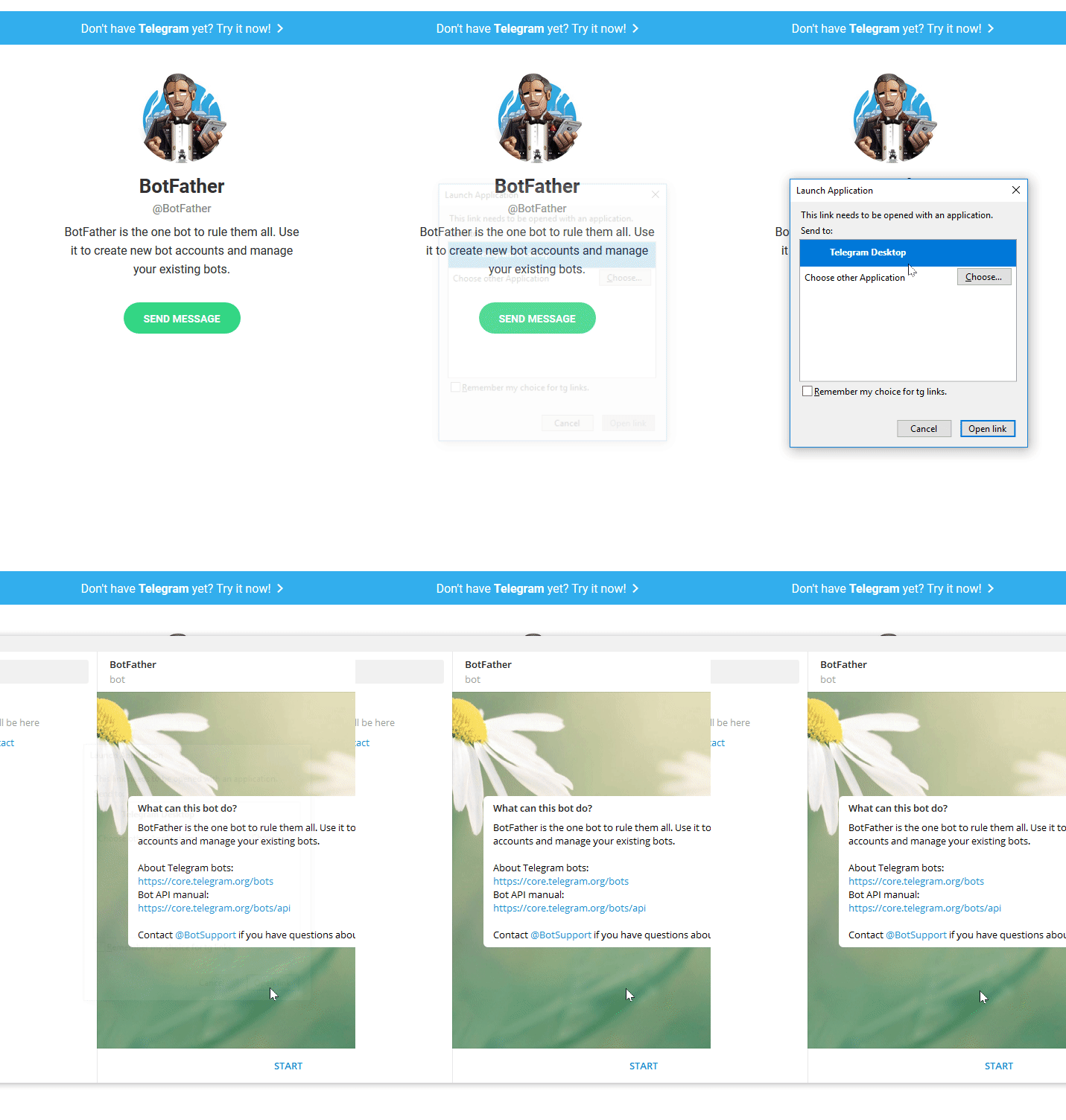
- To create a new Bot, enter
/newbotin the message input box, then press Enter to send it. - Follow BotFather's prompts to set a name and username for your new Bot.
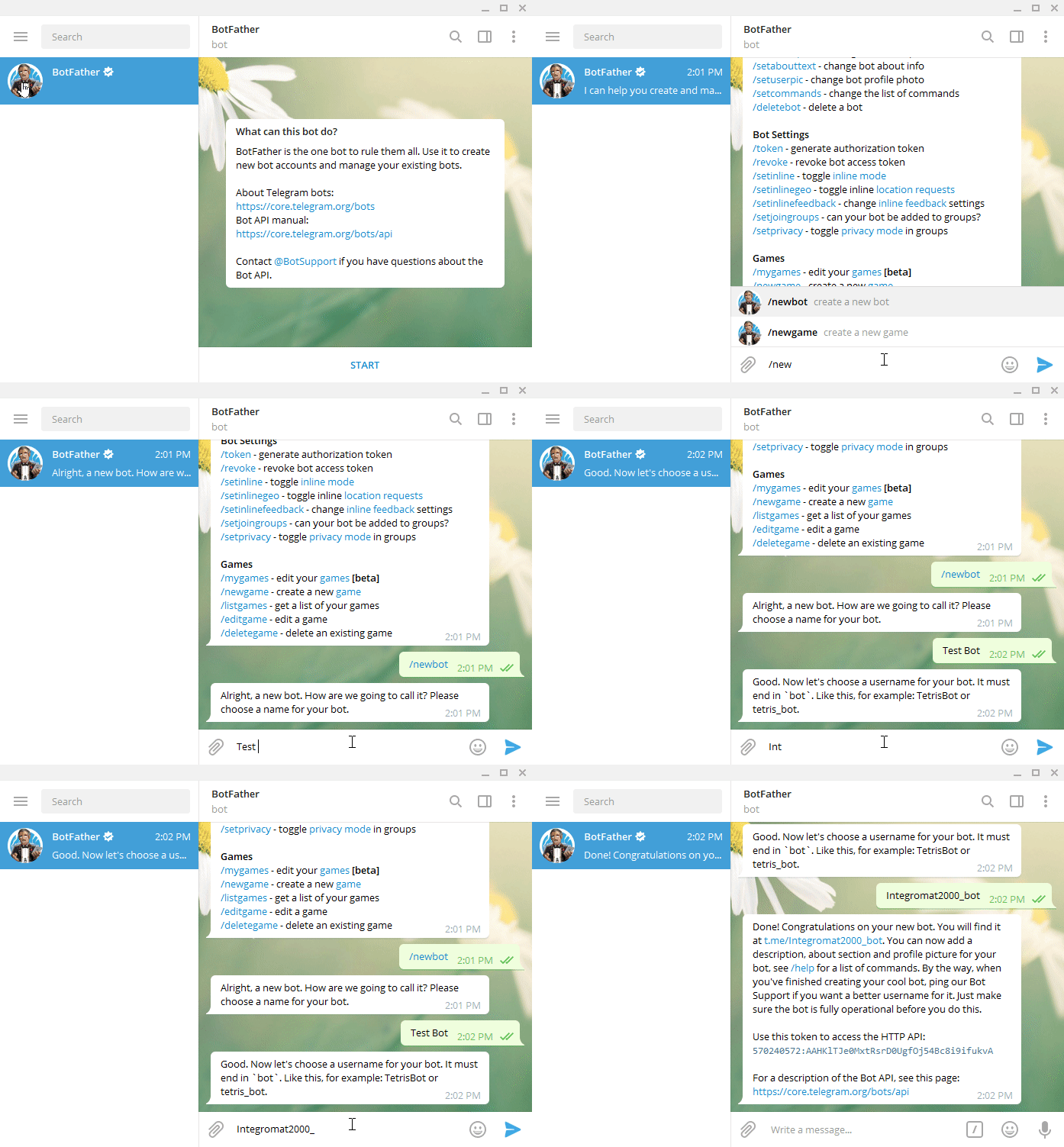
The Bot username must end with bot, for example:
wadeck_support_bot
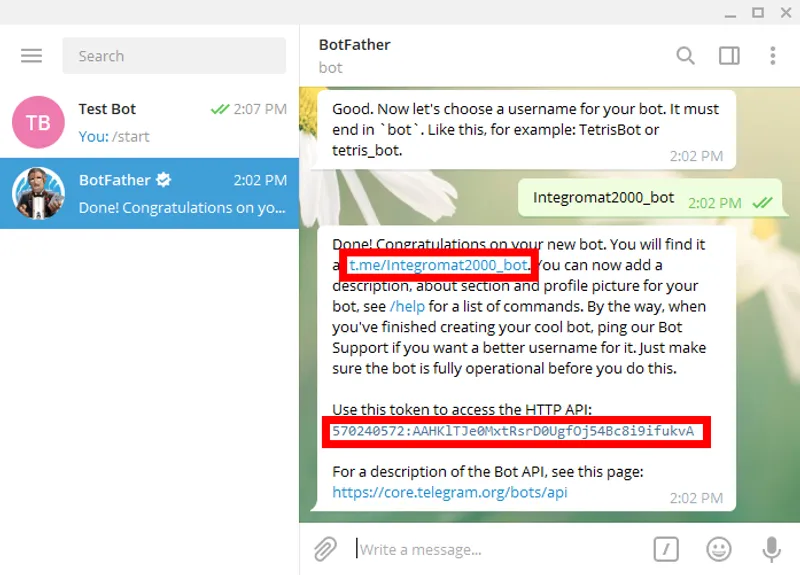
- After the Bot is created successfully, BotFather will send you a message that contains the Bot's API Token.
- Copy the Token and keep it in a secure place.
You will use this Token in the "API Token" field in WADeck.
- To open your Bot in Telegram, click the link in BotFather's message, or manually visit this URL in your browser:
t.me/yourBotName
Use an Existing Telegram Bot
If you already created a Telegram Bot before, you can get its Token from BotFather:
- Open Telegram and go to BotFather.
- Send
/mybotsto BotFather. - Select the Bot you want to connect to WADeck.
- Open the Bot management options.
- Copy the API Token.
Important: We recommend using one Telegram Bot Token for one WADeck workspace. Telegram Bot webhooks are controlled by Telegram, and connecting the same Bot Token to another service may replace the current webhook and stop messages from reaching WADeck.
Create the Connection in WADeck
After you have the Telegram Bot Token, you can create the connection in WADeck.
To create the connection:
- Log in to your WADeck account.
- Go to the "Integrations" page, or open Telegram integrations in WADeck.
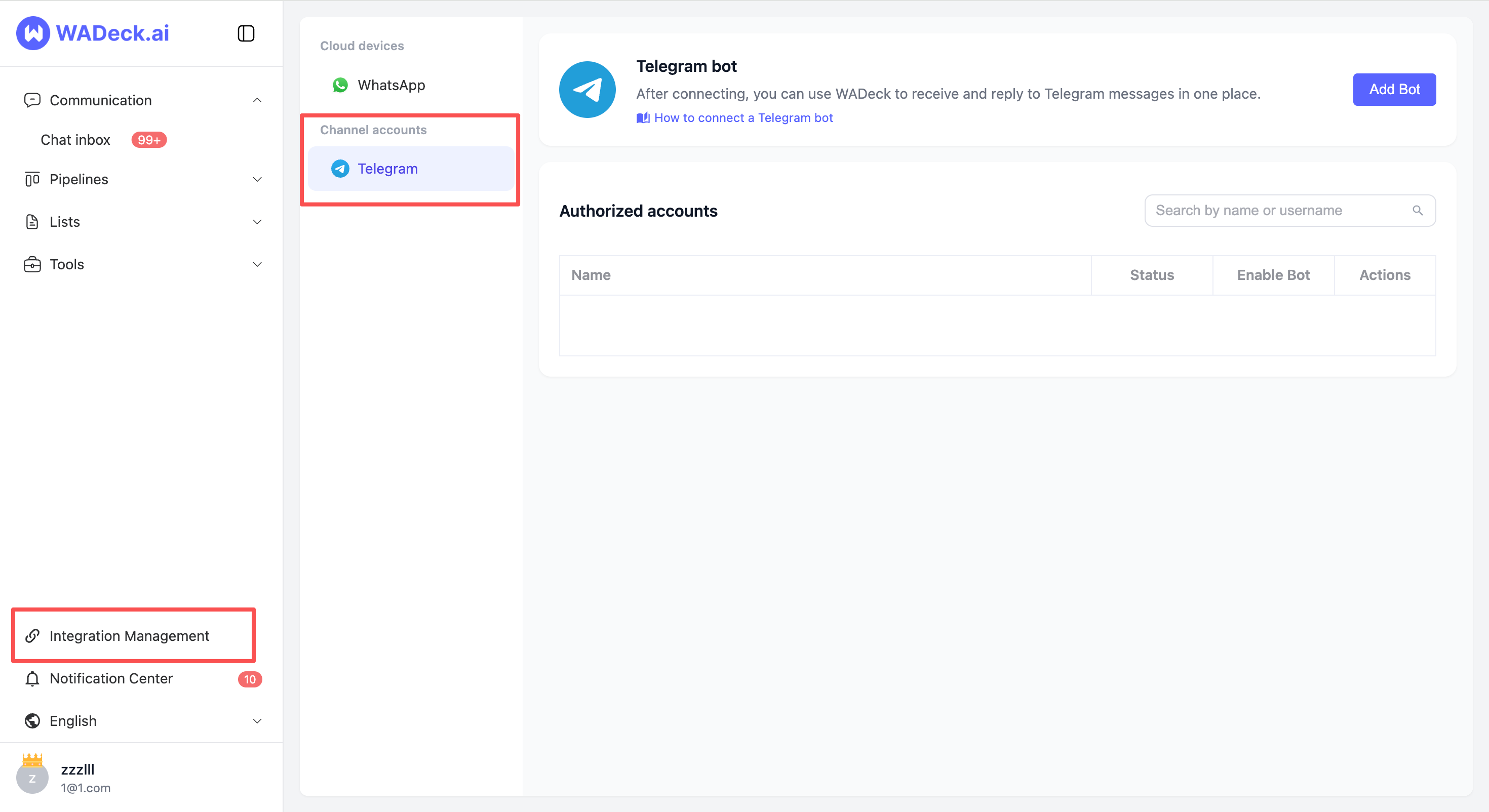
- In "Channel Accounts", find "Telegram bot".
- Click "Add Bot".
- Choose a connection method based on your situation:
- If you just created a new Bot through BotFather, choose "Create New Bot".
- If you already have an existing Telegram Bot, choose "Connect Existing Bot".
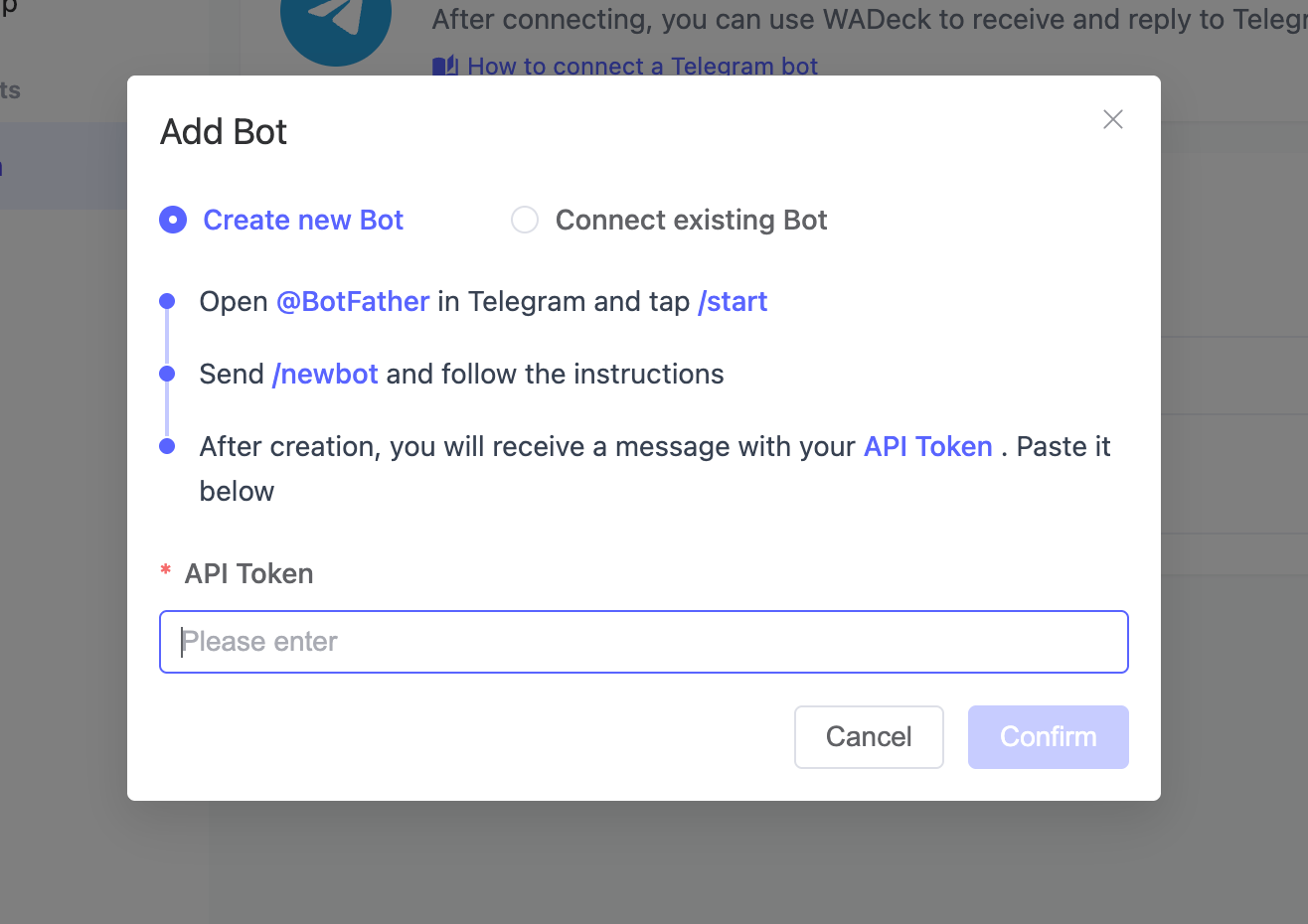
- In the "API Token" field, paste the Token you copied from BotFather.
- Click "Confirm".
- After the Bot is added successfully, it will appear in the "Authorized Accounts" list.
- Find the Bot you just added, then turn on the "Enable Bot" switch.
When the status shows "Normal", the Telegram Bot has been successfully connected to WADeck. After that, Telegram messages sent to this Bot will appear in WADeck, where you can view and reply to them.
Test the Connection
After completing the connection, we recommend running a quick test:
- Open your Bot in Telegram using a Telegram account.
- Click Start, or send a test message to the Bot.
- Go back to the WADeck inbox and check whether a corresponding conversation has been created.
- Reply to the message in WADeck and confirm that it is received in Telegram.
If the test message does not appear in WADeck, confirm that the Bot is enabled, its status is "Normal", and the message was sent to the correct Bot.
Use the Bot in Telegram Group Chats
WADeck can receive and reply to Telegram group chat messages after your Telegram Bot is added to the group and given the right permissions.
Mobile Setup
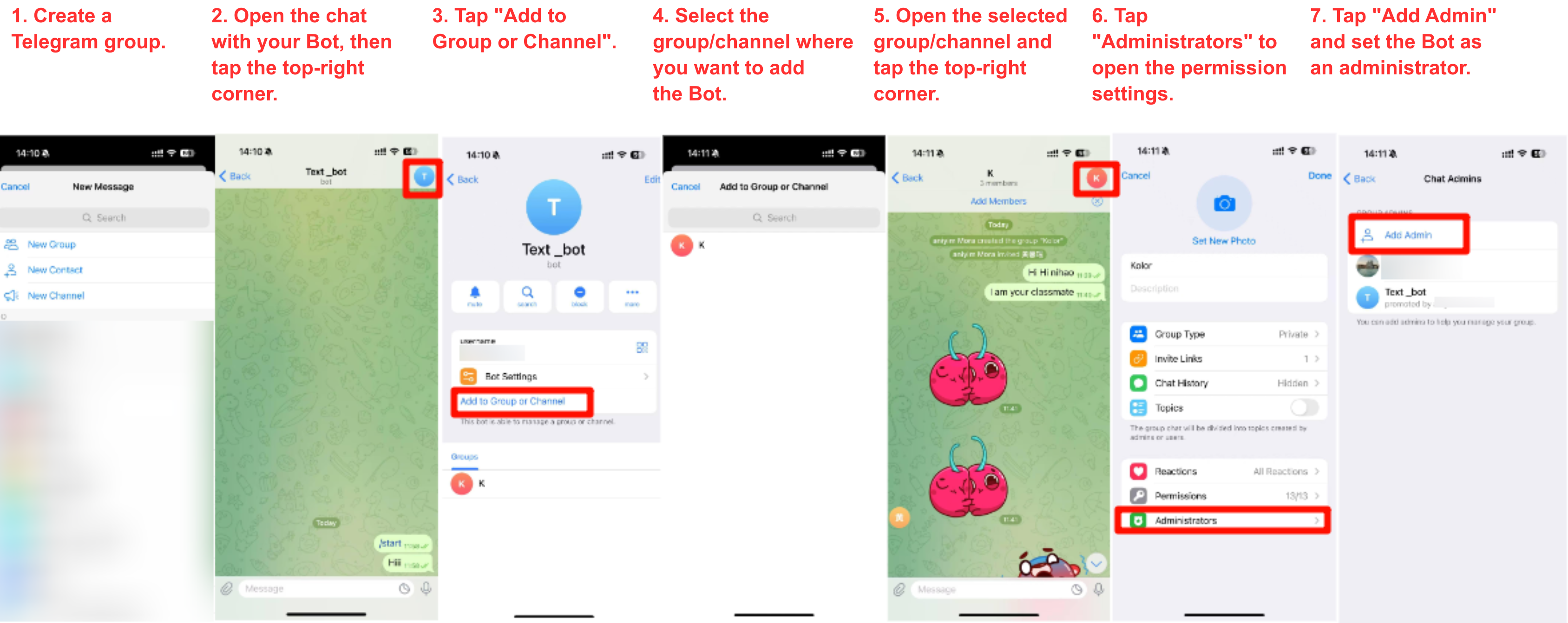
Telegram mobile setup: create a group and open the group details page, then set the Bot as a group administrator and enable the required permissions.
- Open Telegram on your phone.
- Create a Telegram group, or open an existing group.
- Add your Telegram Bot to the group.
- Open the group details page.
- Go to the administrator settings.
- Add the Bot as an administrator.
- Allow the Bot to read and send messages.
Desktop Setup
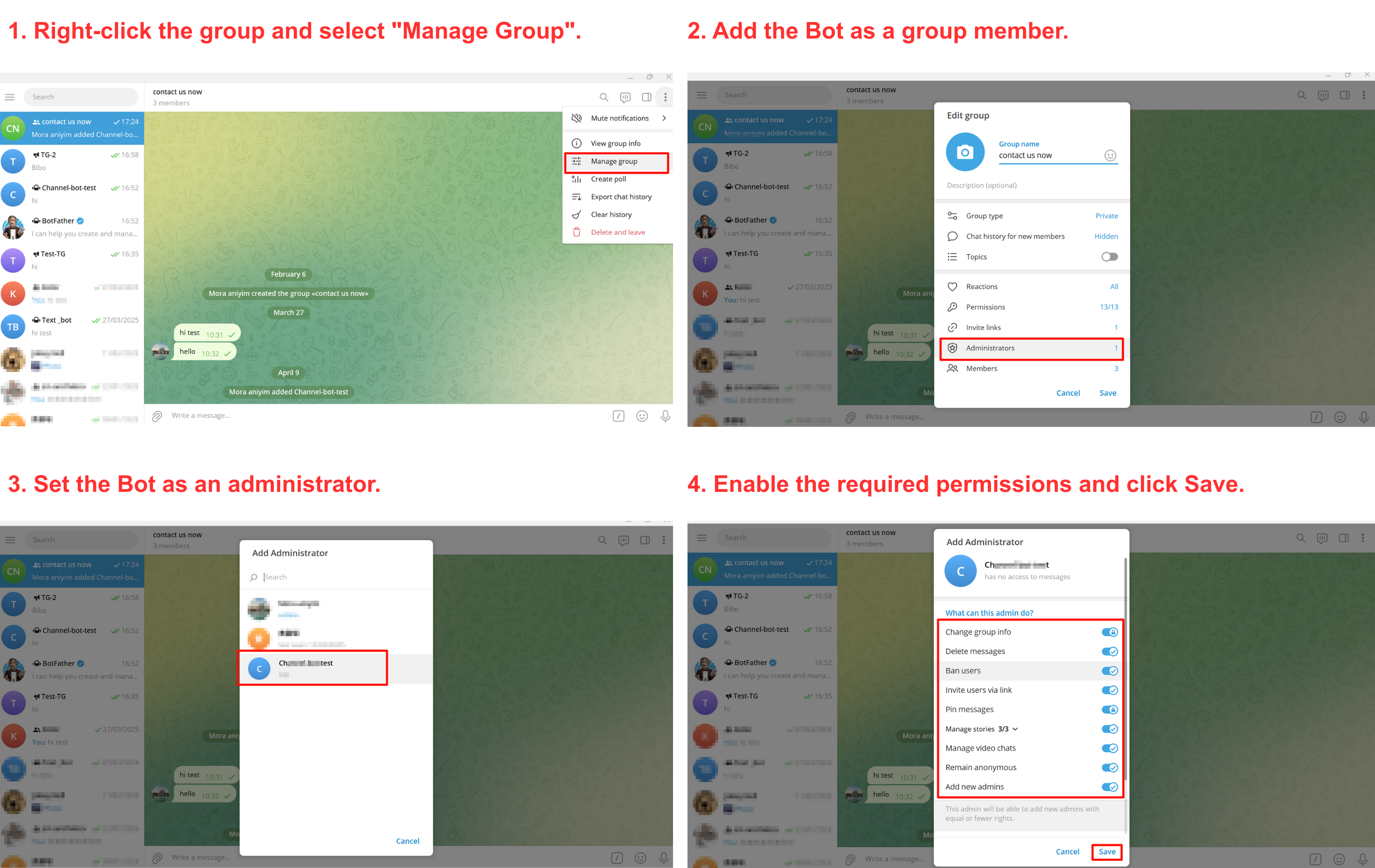
Telegram Desktop setup: open Manage Group, add the Bot as a group member, set it as an administrator, and enable all required permissions.
- Open Telegram Desktop.
- Create a Telegram group, or open an existing group.
- Add your Telegram Bot to the group.
- Open the group information panel.
- Open the administrator settings for the group.
- Add the Bot as an administrator.
- Enable the permissions required for the Bot to receive and send messages.
After setup, send a message in the Telegram group. A new conversation should appear in the WADeck inbox, and your team can reply from WADeck.
Note: If you already have a Telegram group, you do not need to create a new one. Add the Bot to the existing group and set it as an administrator.
Use the Bot for Telegram Channel Broadcasts
WADeck can also help you handle Telegram channel broadcasts after the Bot is added to the channel as an administrator.
Mobile Setup
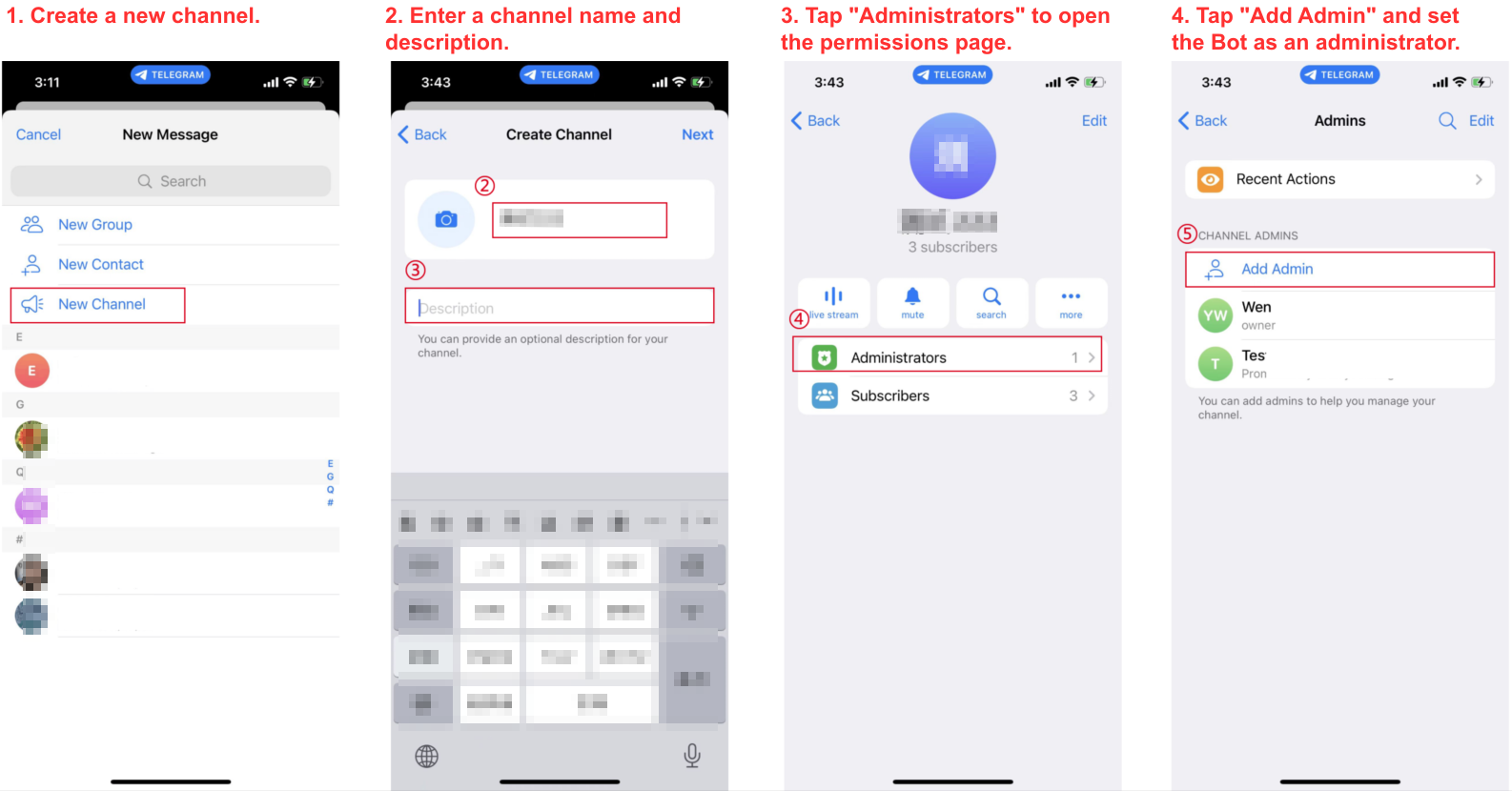
Telegram mobile channel setup: create a channel, open the Administrators section, add the Bot as an administrator, and configure the required permissions.
- Open Telegram on your phone.
- Create a Telegram channel, or open an existing channel.
- Open the channel details page.
- Go to the administrator settings.
- Add your Telegram Bot as an administrator.
- Allow the Bot to post and manage messages as needed.
Desktop Setup
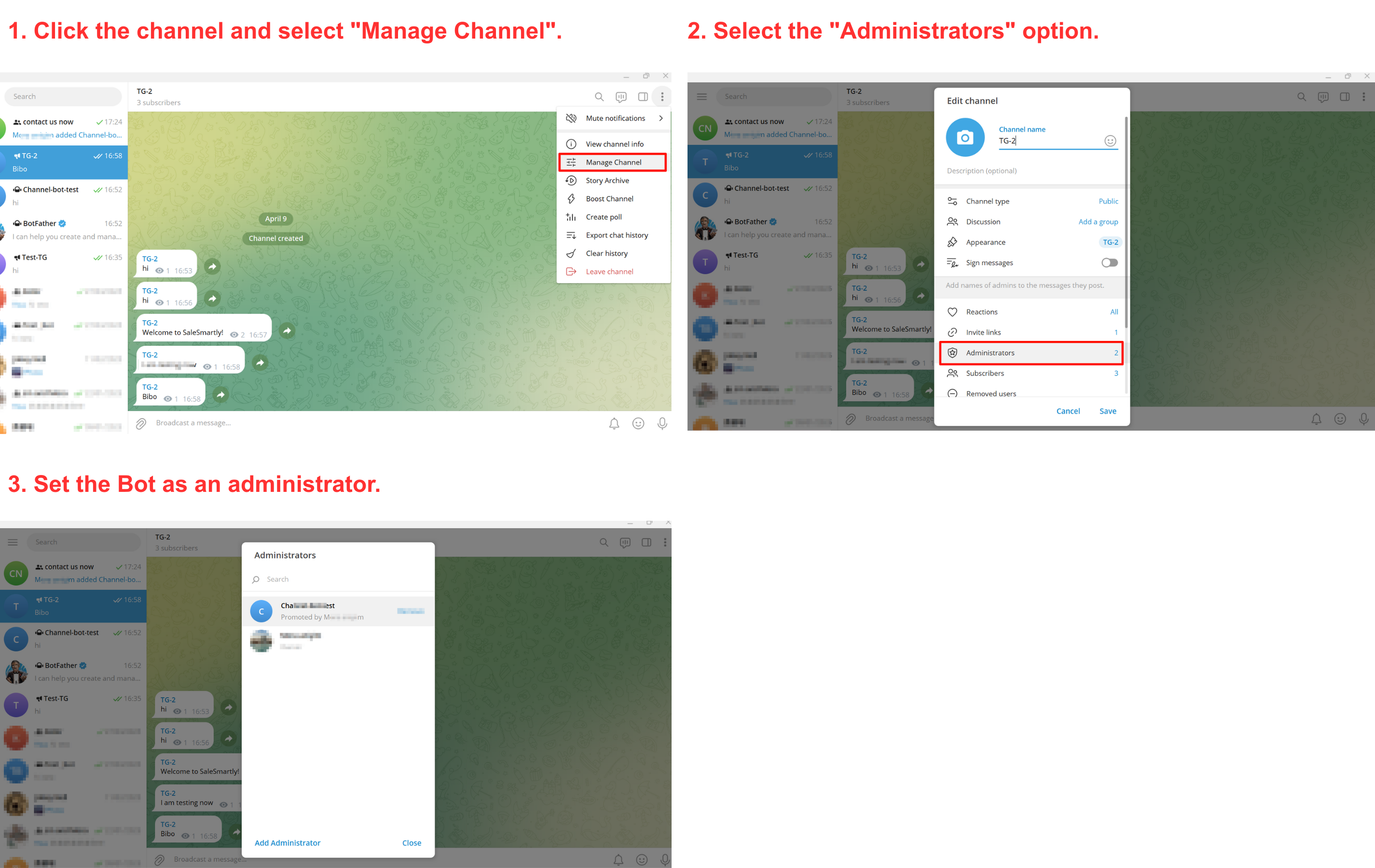
Telegram Desktop channel setup: open Manage Channel, select Administrators, and set the Bot as an administrator.
- Open Telegram Desktop.
- Create a Telegram channel, or open an existing channel.
- Open the channel management panel.
- Open the administrator settings for the channel.
- Add your Telegram Bot as an administrator.
- Enable the permissions required for channel broadcasts.
After setup, send one broadcast message in the Telegram channel. Then go back to WADeck and check whether the channel conversation appears in the inbox.
Frequently Asked Questions
Can one Telegram Bot be connected to multiple WADeck workspaces?
We recommend connecting one Telegram Bot to only one WADeck workspace. Telegram Bot webhooks usually work with one active destination at a time. If the same Bot Token is connected elsewhere, messages may stop syncing to the previous workspace.
Can Telegram Bot messages be received in the Telegram app?
Telegram Bot messages are Bot conversations, not personal account chats. After the Bot is connected to WADeck, customer messages should be handled in the WADeck inbox.
Why are Telegram messages not showing in WADeck?
Check these items first:
- The Bot is enabled in WADeck.
- The Bot status is "Normal".
- The message was sent to the correct Bot.
- The API Token is copied correctly.
- The Bot has administrator permissions if you are testing a group or channel.
What should I do if the Bot status is not Normal?
Copy the API Token from BotFather again, update the Token in WADeck, and confirm the Bot is enabled. If the Bot was recently connected to another service, reconnect it in WADeck so the webhook points back to WADeck.