WADeck – Message Template User Guide
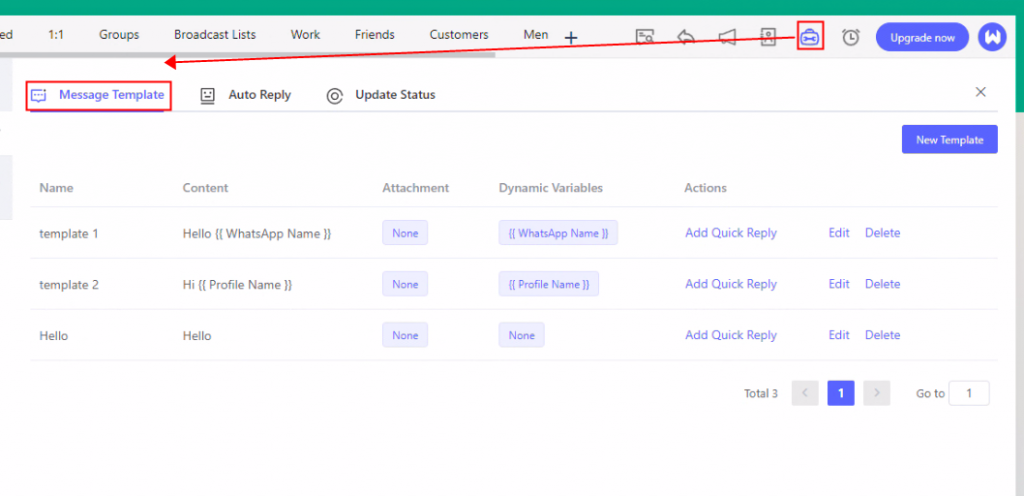
Step 1: Accessing Message Template List.
- Click "Whatsapp Tools" in the upper-right corner.
- Select the "Message Template" tab to enter.
- Manage and organize your message templates efficiently.
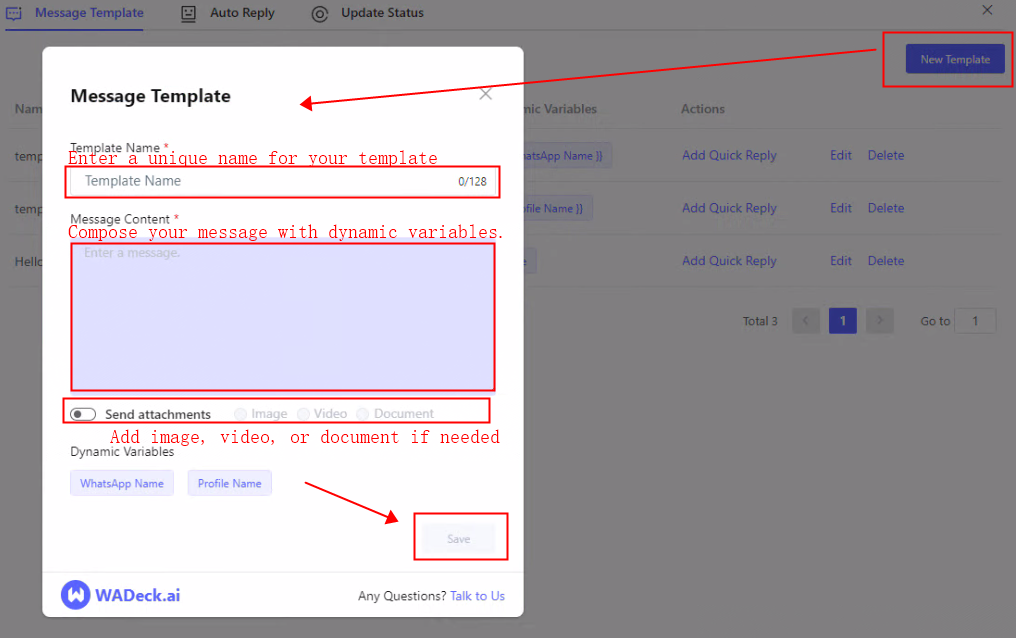
Step 2: Click "New Tempalte" button to popup a dialog for creating templates.
- Easily generate new message templates.
- Include Template Name, Message Content, Attachments.
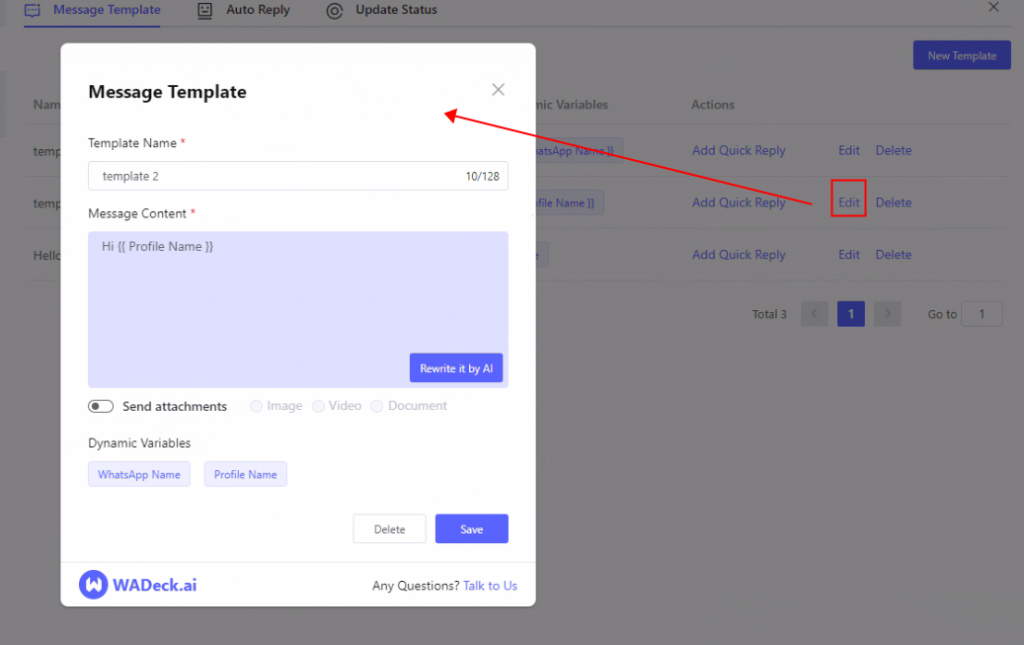
Step 3: Click "Edit" button to popup a dialog for editing templates.
- Modify existing templates as needed.
- Update Template Name, Message Content, Attachments.
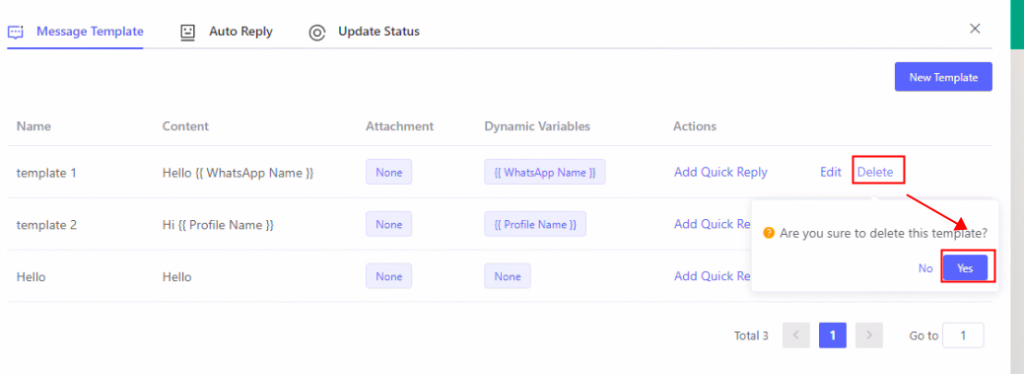
Step 4: Click "Delete" button to deleting templates.
- Remove unwanted templates from the system.
- Confirm deletion for security.
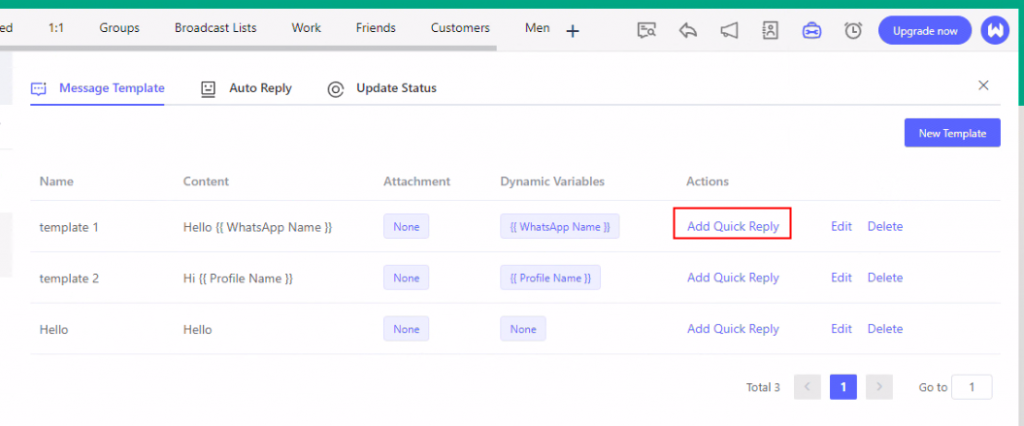
Step 5: Click "Add Quick Reply" button to generating quick replies.
- Utilize templates to craft rapid responses.
- Personalize using dynamic variables.
- Speed up communication.
Step 6: Dynamic Variables for Message Content Enhancement:
- Tailor content with dynamic variables.
- Amplify message clarity and relevance.
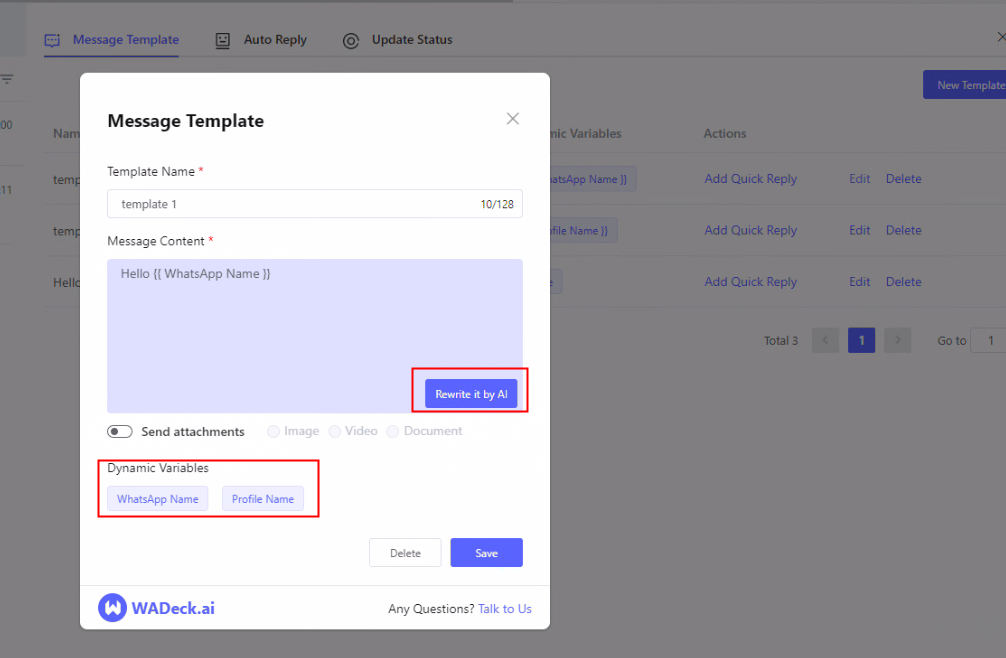
- Leverage AI for content refinement.