WADeck – Tutorial on how to use the group messaging function
Step 1: Click on the corner icon in the upper right corner of the browser

__
Step 2: Find the WADeck plugin and pin it to your browser

__
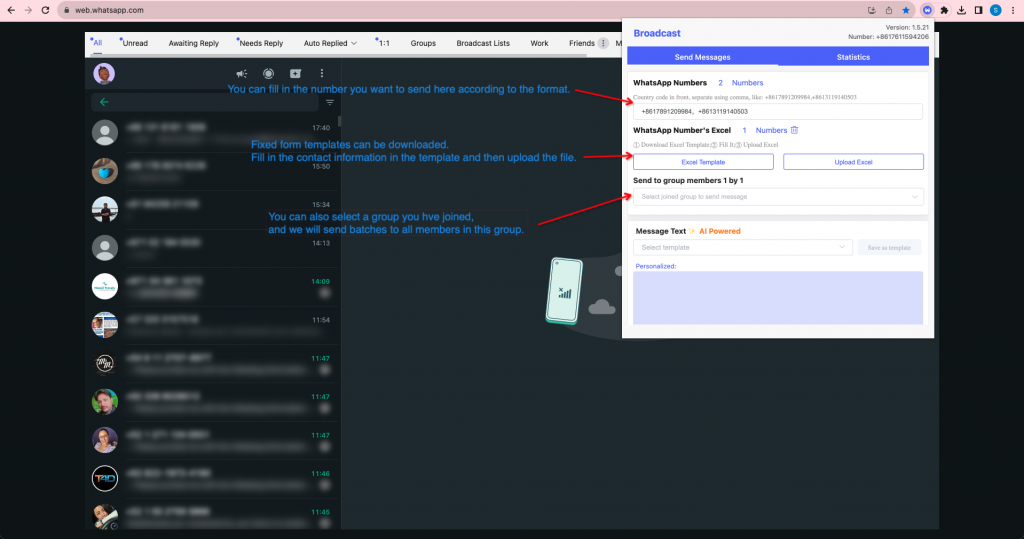
Step 3**: You can choose different ways to add what needs to be sent**
- You can fill in the number you want to send here according to the format
- Fixed form templates can be downloaded. Fill in the contact information in the template and then upload the file
- You can also select a group you have joined, and we will send batches to all members in this group.
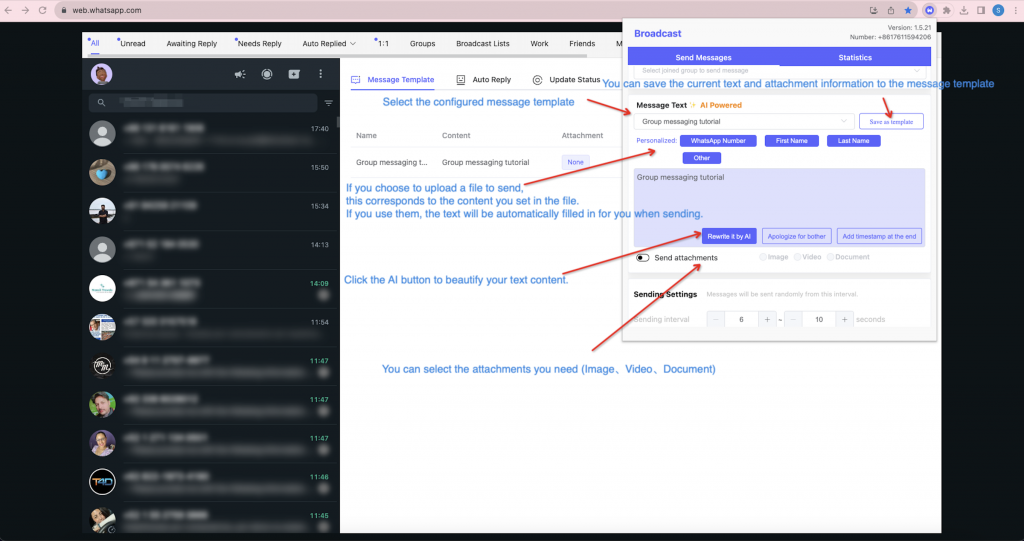
Step 4: Select the message template you have created. The content in the message template is the content you send this time.
- Select the configured message template
- You can save the current text and attachment information to the message template
- If you choose to upload a file to send, this corresponds to the content you set in the file. If you use them, the text will be automatically filled in for you when sending.
- Click the AI button to beautify your text content
- You can select the attachments you need to send (pictures, videos, files)
- Tutorial on creating message templates
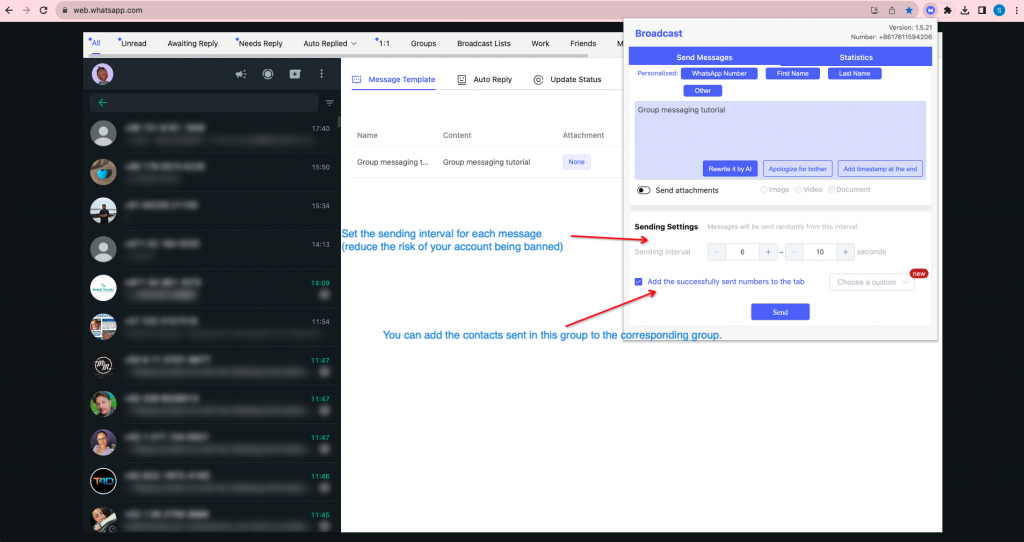
Step 5: Set interval && Select whether to import contacts into the group
- Set the sending interval for each message (reduce the risk of your account being banned)
- You can add the contacts sent in this group to the corresponding group.